Apps of May: 2026 Edition
Clicky Klack, Menu Stats, and Dictation that Slaps.
It’s been over five months since I last did an app spotlight, which feels like as good a time as any to highlight a few apps that have found a comfortable place on my Mac.
I’d like to think I’m pretty picky when it comes to the apps that get to stay on my devices, so if something has earned a spot in my Dock, menu bar, or daily workflow, it’s probably doing something right.
iStat Menus
Nearly 20 years in, iStat Menus remains the definitive menu bar app for seeing all the inner workings of your Mac.
iStat Menus has been around since 2007, so this is far from a new app. Still, whenever I post a screenshot, I regularly get asked about that little iStat Menus icon sitting in my menu bar.
For those new to the Mac, or who have somehow managed to avoid hearing about it, iStat Menus is a highly customizable menu bar utility that lets you track a dizzying number of things happening on your Mac.
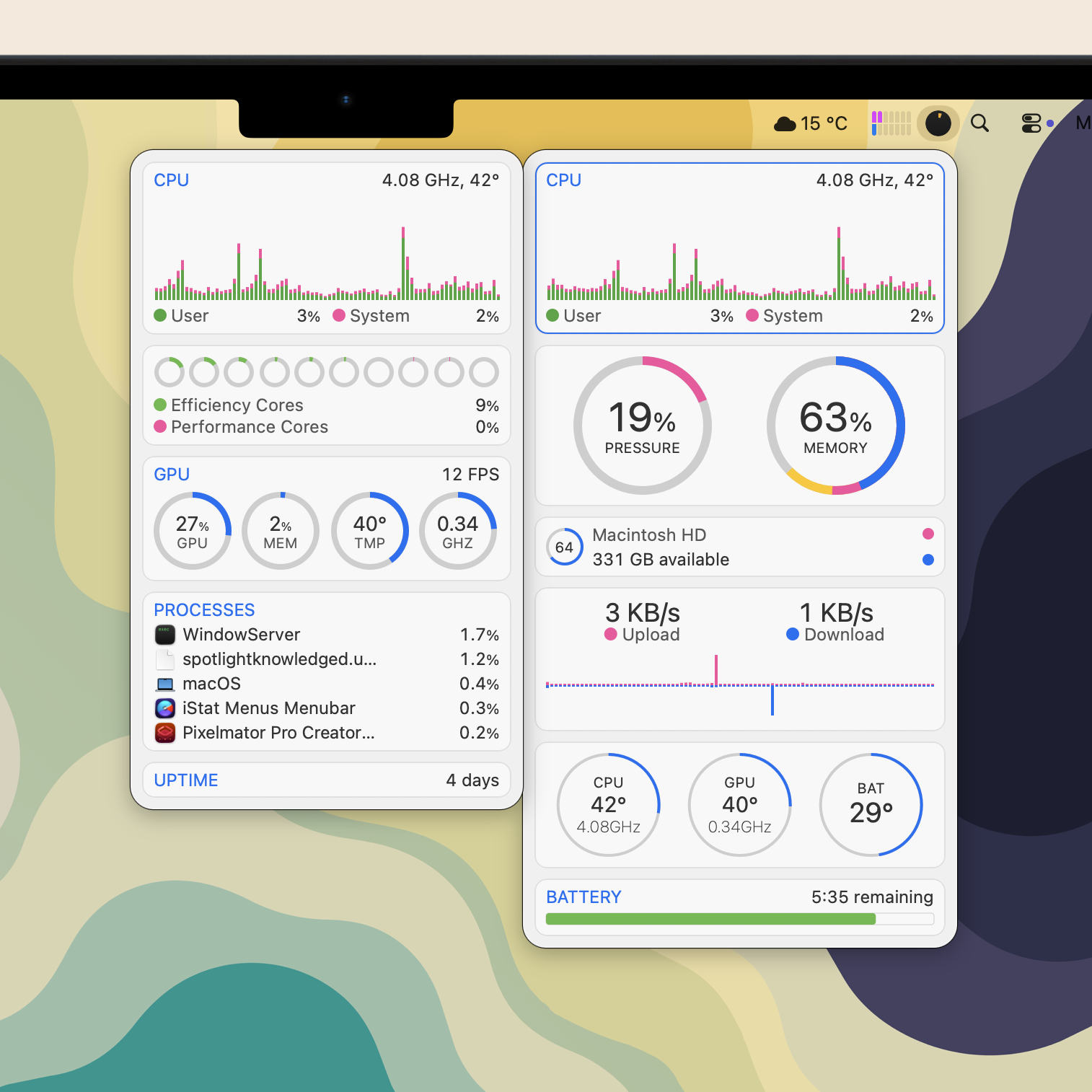
Screenshot showing my unified iStat Menus bar and a few of the tiles I have enabled. Hovering over a section, in this case CPU stats, expands the tile with additional information.
Curious about your uptime? There’s a stat for that. Available memory? Memory swap? SSD temperature? Battery life? Battery health? Network usage? There’s a stat for all of that and more, including sections for weather, time, calendars, and on and on.
You can customize what you want to see as well, showing only the data you’re curious about in the menubar itself and/or in the clickable dropdown panel. Furthermore, you can customize the colours of the text, graphs, and gauges to your hearts content.
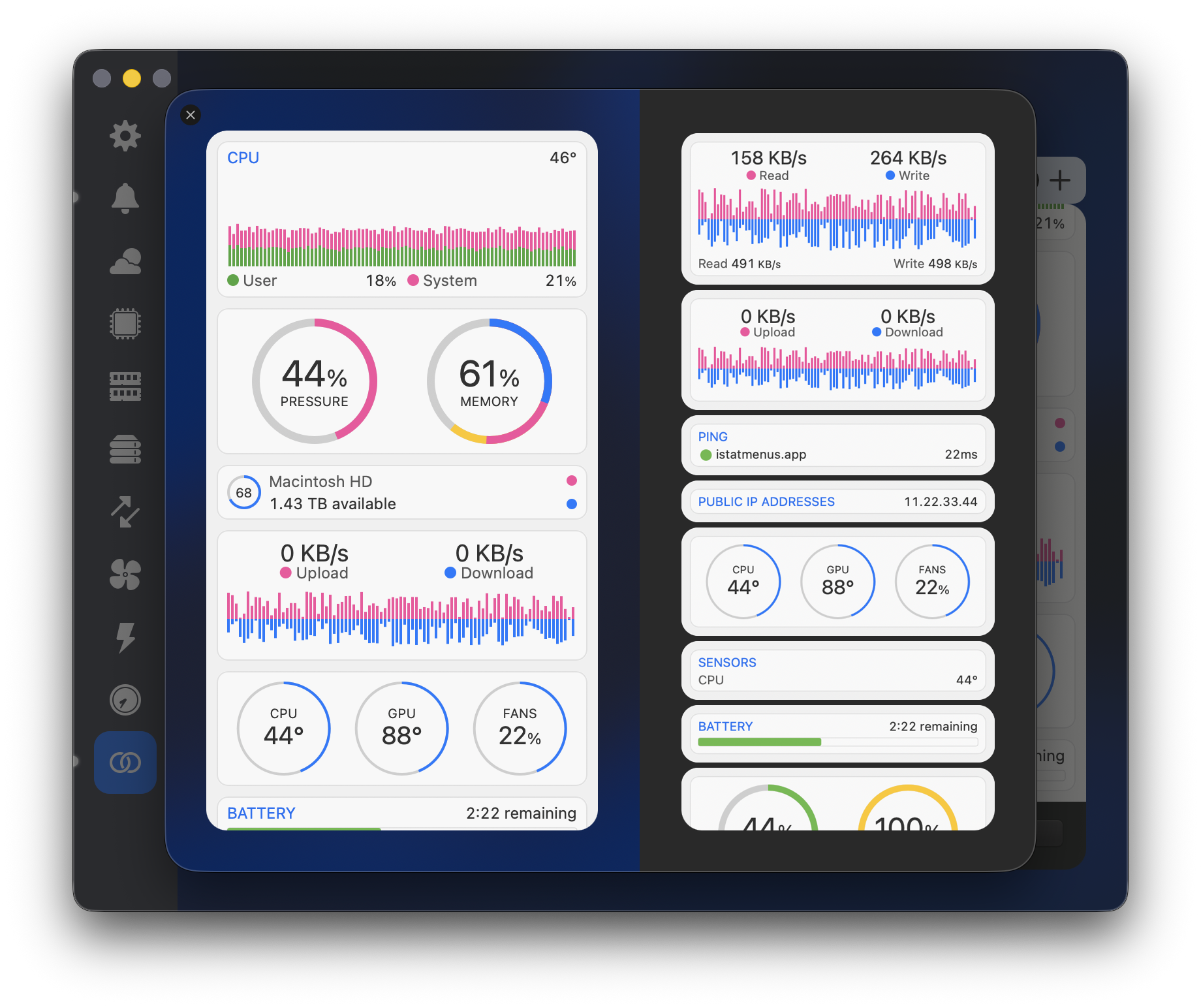
Customize the colours, customize the tiles, and customize exactly what you want to see in the menu bar itself.
For me, iStat Menus is partly cosmetic. I enjoy seeing the data and getting a better sense of what’s happening under the hood of my Mac. But more than that, it provides a comprehensive little portal for understanding and managing my Mac’s battery life, spotting apps that are using more memory than expected, or noticing when something is causing my Mac to run hotter than it should. But you can also use it to see the weather (paid upgrade), see your calendar and events, view the time in different timezones, the phases of the moon, when golden hour is, and even track the location of the ISS.
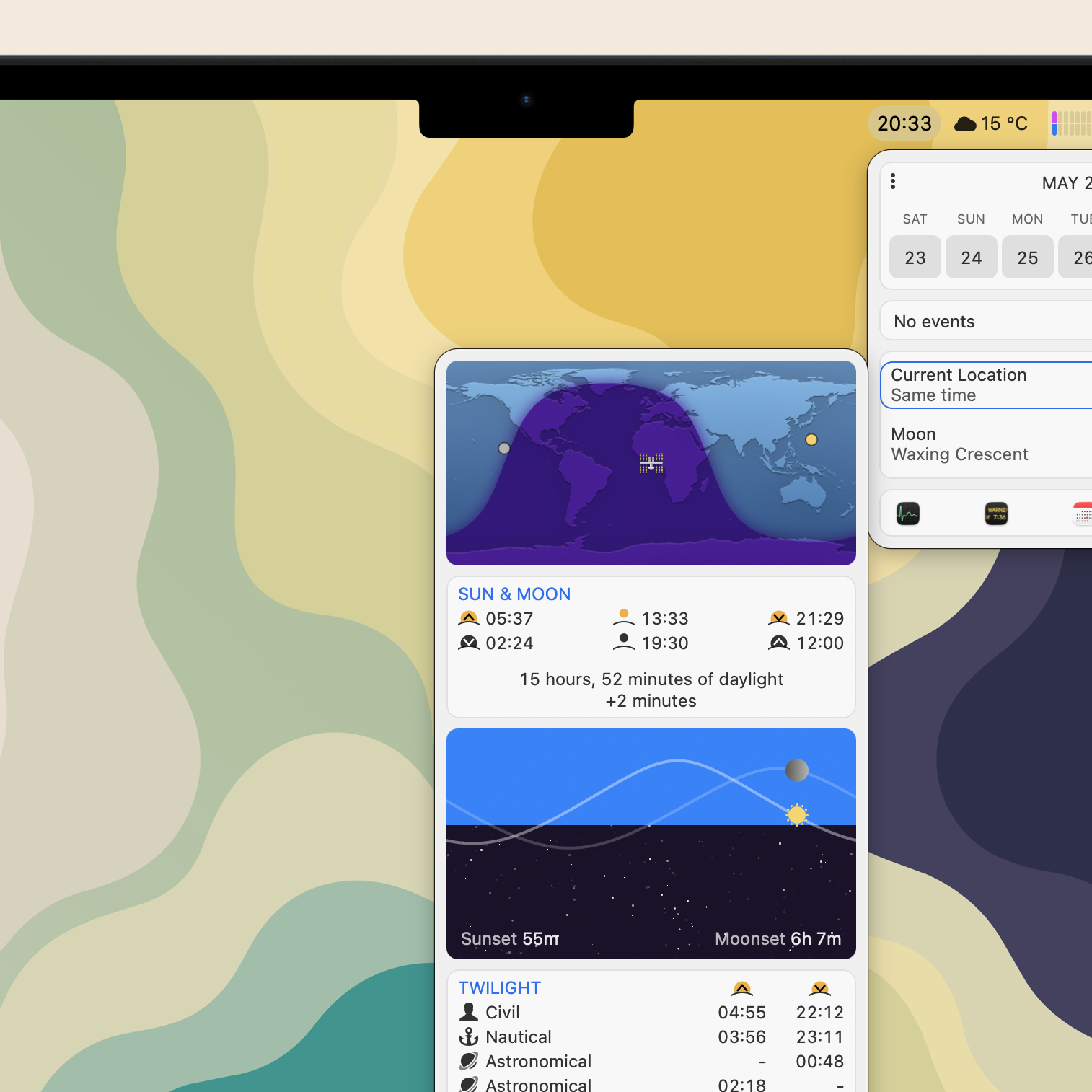
If you were hoping for an app that also happens to show the current location of the ISS, then boy do I have great news for you.
iStat Menus is one of the first apps I install on any new Mac, and it’s available from the Mac App Store or directly from developer Bjango’s website for under $20. There’s also a 14-day free trial, which gives you plenty of time to see just how many tiny stats you suddenly start caring about.
Klack
Turn your mushy MacBook keyboard into a satisfying, click-klacky symphony.
Sample audio of my terribly slow finger-typing with Klack enabled.
Currently, it includes seven different switch sounds from various keyboard makers: Japanese Black from CherryMX™, Crystal Purple and Oreo from Everglide™, Cardboard from Flurples™, Milky Yellow from Gateron™, Super Red from Keychron™, and Cream from NovelKeys™.
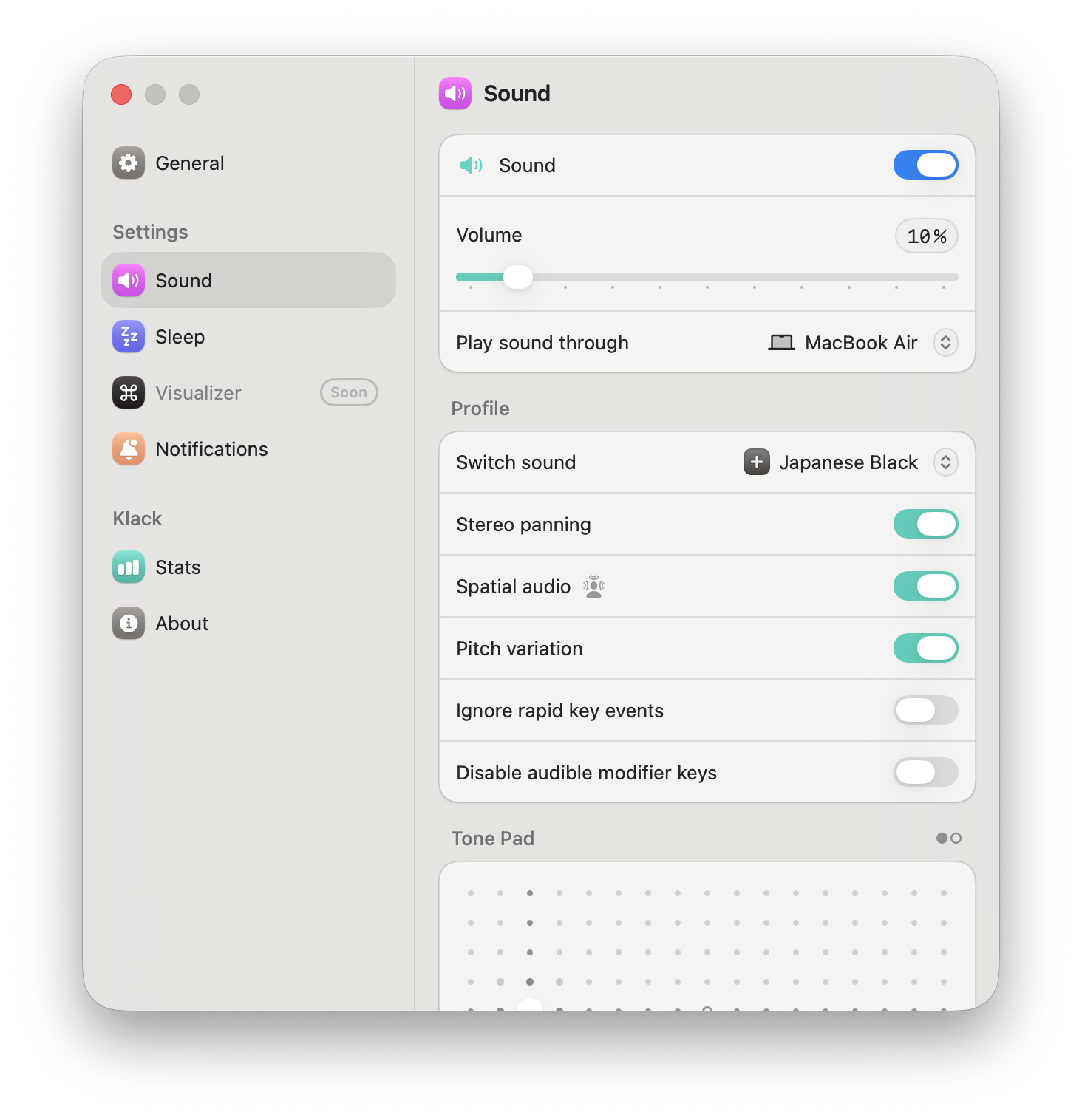
Adjust an absolutely ridiculous number of settings to create your perfect Klack profile, from volume and switch sounds to the overall tone.
Each switch set includes over 100 audio files, delivered with zero latency, with support for Spatial Audio so the sound changes based on your head position when using headphones. It also offers variable pitches and plenty of customization, letting you adjust the tone, pitch variation, and volume to create the perfect keystroke profile for you.
You can also customize exactly when you want those keystroke sounds to occur. So if you’re in meetings, listening to music, on camera, or winding down in the evening and don’t want the extra clicks and clacks, you can set specific cues that automatically disable the app in those situations. All of this is easily adjustable through the applications beautifully designed setting panel.
I love typing on Apple’s Magic Keyboard, and while I’ve tried a small handful of mechanical keyboards over the years, I keep coming back to it. But one drawback of Apple’s keyboards is that they don’t sound satisfying at all. Klack changes that. After a couple days of using it, I’m hooked! I honestly can’t see myself turning it off anytime soon.
Klack is available from the developer Henrik Ruscon on his website or through the Mac App Store for $4.99.
Unspoken
Double your WPM with this offline, privacy-minded dictation app.
I spend a lot of time typing. I write case notes at work, I write for this blog, and I journal at home. And between all that I am responding to emails, sending messages, grading papers, making notes. And despite all that typing, I am a very average typist, usually landing somewhere between 48–58 words per minute with about a 5% error rate. What I began to notice is that I had more to write that I wanted to type, and that’s where Unspoken came in.
Unspoken is an offline dictation app that uses local AI models to help you quickly dictate your messages. Apple already has its own speech recognition built into its devices, but I’ve found that other models are often more reliable and accurate at understanding what I’m trying to say.
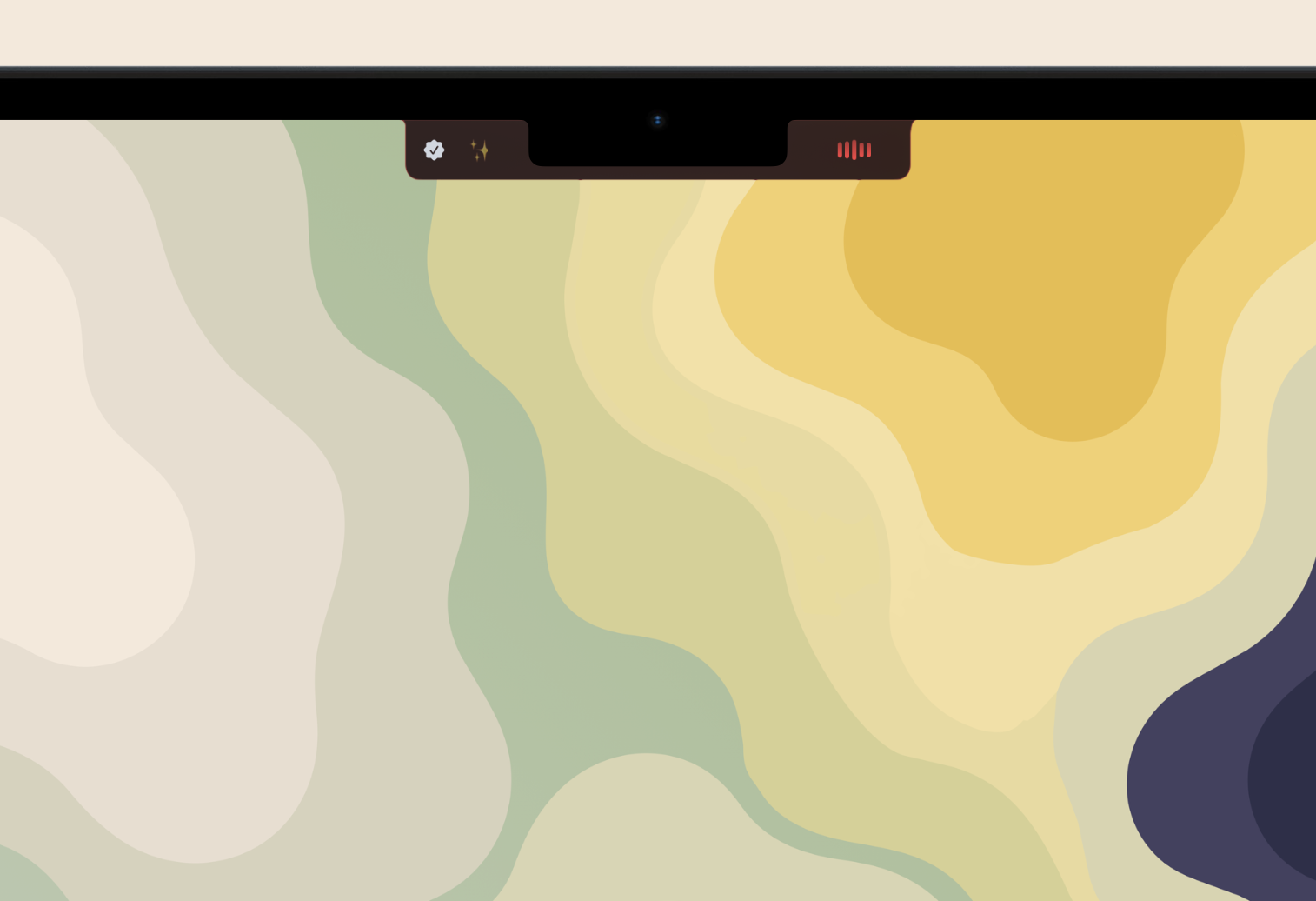
The Unspoken recording indicator, tucked neatly into the notch.
That accuracy is what makes dictation like this feel genuinely useful. It doesn’t just help me get my thoughts out faster, it also saves me time afterward because I can trust that what I’m saying is being captured and transcribed properly.
And over the past few months, I’ve found the accuracy of good dictation invaluable for helping me write in a way that captures my voice and tone, which I have found especially beneficial for helping make my emails, journal, and feedback to students more personal.
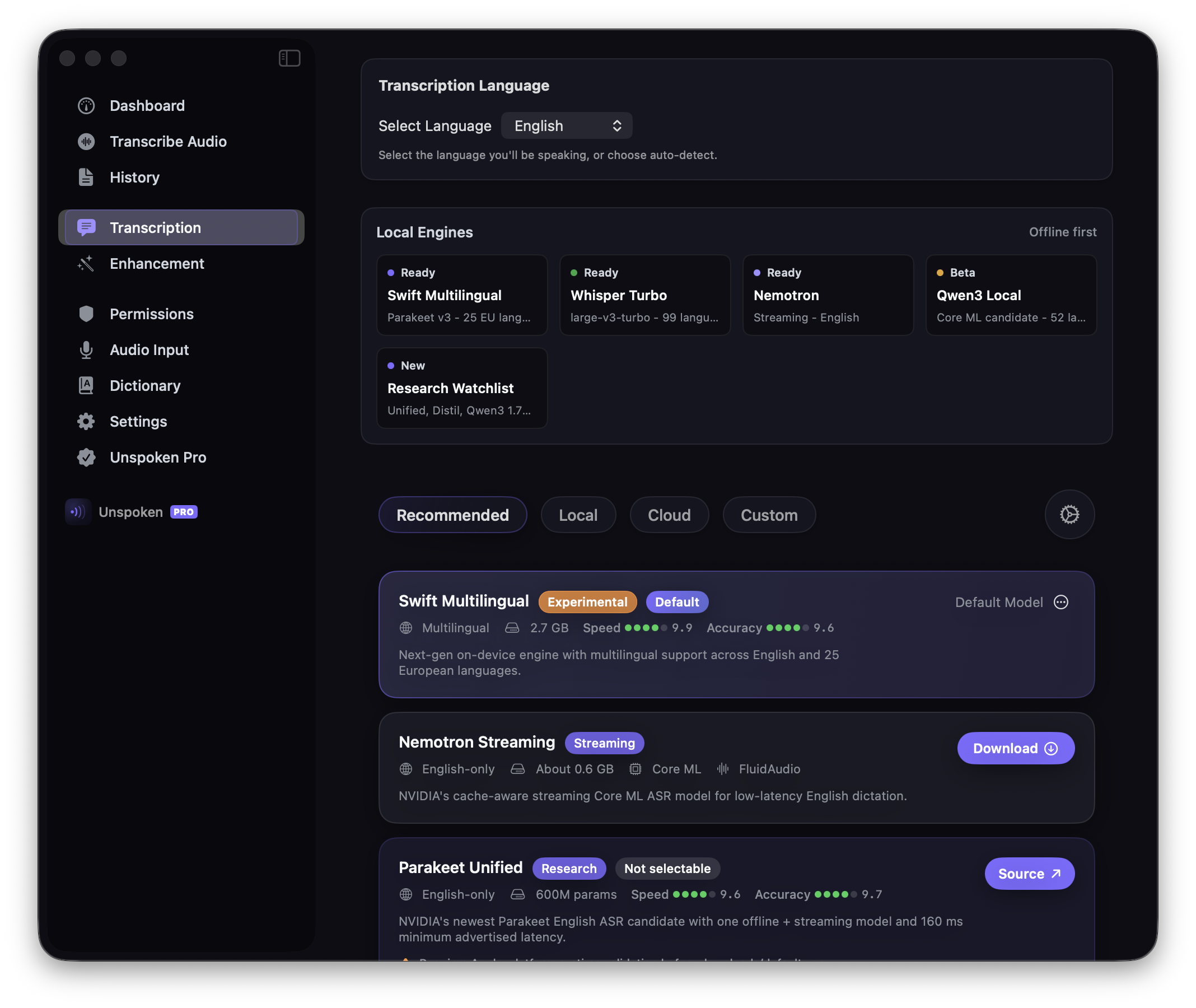
Settings window allowing you to choose from a range of offline and cloud models.
Unspoken now features over a dozen local models to download, each varying in language support, file size, speed, and accuracy. You can also add text snippets for quick entry, create a custom dictionary to improve transcription accuracy, and enable automatic formatting, punctuation, and speech refinement, helping smooth out the umms, stutters, and awkward pauses that naturally show up when speaking.
You can also pair it with an online LLM to improve context awareness and add another layer of refinement. But for me, one of the app’s biggest selling points is that all of the processing can happen privately on device.
One small complaint I have with the app is that it doesn’t show the text you’re speaking until after you end the transcription. So if you’re dictating longer passages, you’re a bit blind to what you’ve already said. It’s mildly annoying at first, but honestly, you adjust pretty quickly, and before long it mostly fades into the background.
Overall, using Unspoken has increased my words per minute to nearly 90, nearly doubling my previous writing speed. It can feel a bit strange at first, mostly because the way I write is different from the way I speak, but learning to adjust my thinking has been worth it. The speed and convenience gains have been significant.
Unspoken is available as a $8/month ($80/year) subscription or as a $190 one-time purchase.