Introducing BasicClips! A whimsical new app for iPhone, iPad, and Mac that brings all your bookmarks, articles, images, notes, and online discoveries together in one place!
Today, I’m introducing BasicClips, the all-in-one place to collect and organize links, images, and all the other things you come across on the web and want to save for later. Everything in one handy place.
BasicClips
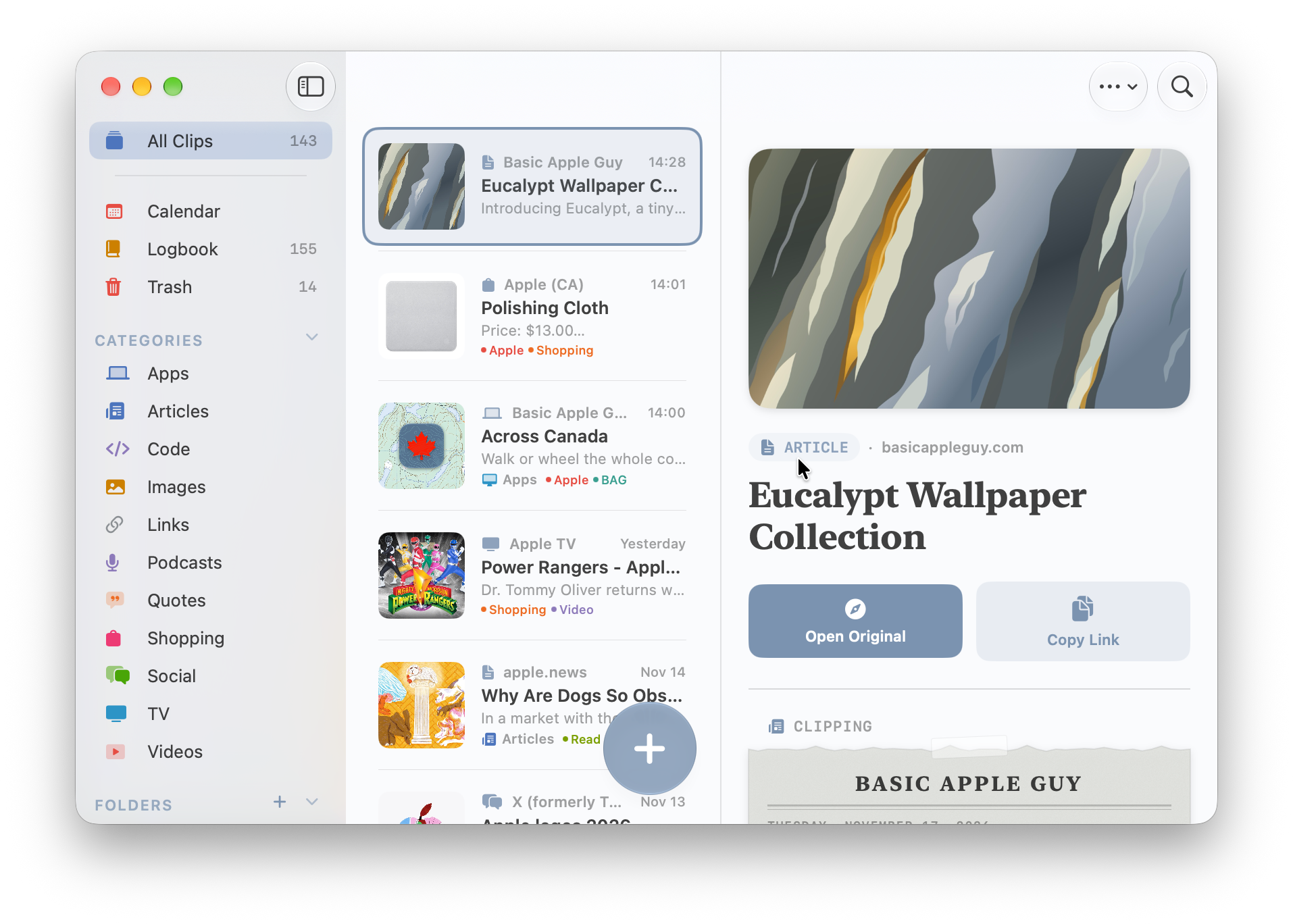
BasicClips (macOS)
Below is a rather lengthy write-up about BasicClips, including its origin story, features, the thinking behind the app, and how I've been using it over the past six months. I wanted to share as much detail as possible, but the most important thing is that BasicClips is available now!
You can download it for free from the App Store for iPhone, iPad, and Mac, with a visionOS version coming very soon.

I've also spent the last couple of weeks refining BasicClips for the iPhone Duo, making sure it looks great works great there too.
And if you'd like to support BasicClips, while there are no in-app purchases, you're always welcome to leave a donation through my website. Any support is greatly appreciated and helps give me the time and resources to continue developing, improving, and adding new features to the app.
Origin Story
Every day, I come across so many different things online that I want to save for later. Maybe it’s a news article I want to read, a social media post I want to come back to, an artist I want to check out, a book, a website, or something I’m thinking about buying.
And of course, just about every app has its own way of saving things. You can bookmark a website in Safari, save an article in News, add something to Reminders, or save a post on social media.
But the problem is that all of these things get saved inside their respective silos. And as a result, everything I wanted to come back to, read, explore, or reference ends up scattered across a dozen different places. It's all saved somewhere, but when I actually want to find something again, I have to remember where I saved it in the first place.
Now, BasicClips isn't exactly breaking new ground. There are already plenty of bookmarking, save-it-later, and read-it-later apps out there. But what I wanted was something that brought all those scattered saves together into one place, regardless of where they came from, with enough organization to actually find things again, a little intelligence to make the app more powerful, plenty of customization to make it feel like your own, and just a touch of whimsy to make the whole experience more enjoyable.
Essentially, I wanted to make saving things simpler, so naturally I spent the last eight months working on an entire app to do it.
Simplicity
One of the things I wanted to focus on with BasicClips was making the process of saving things as quick and effortless as possible.
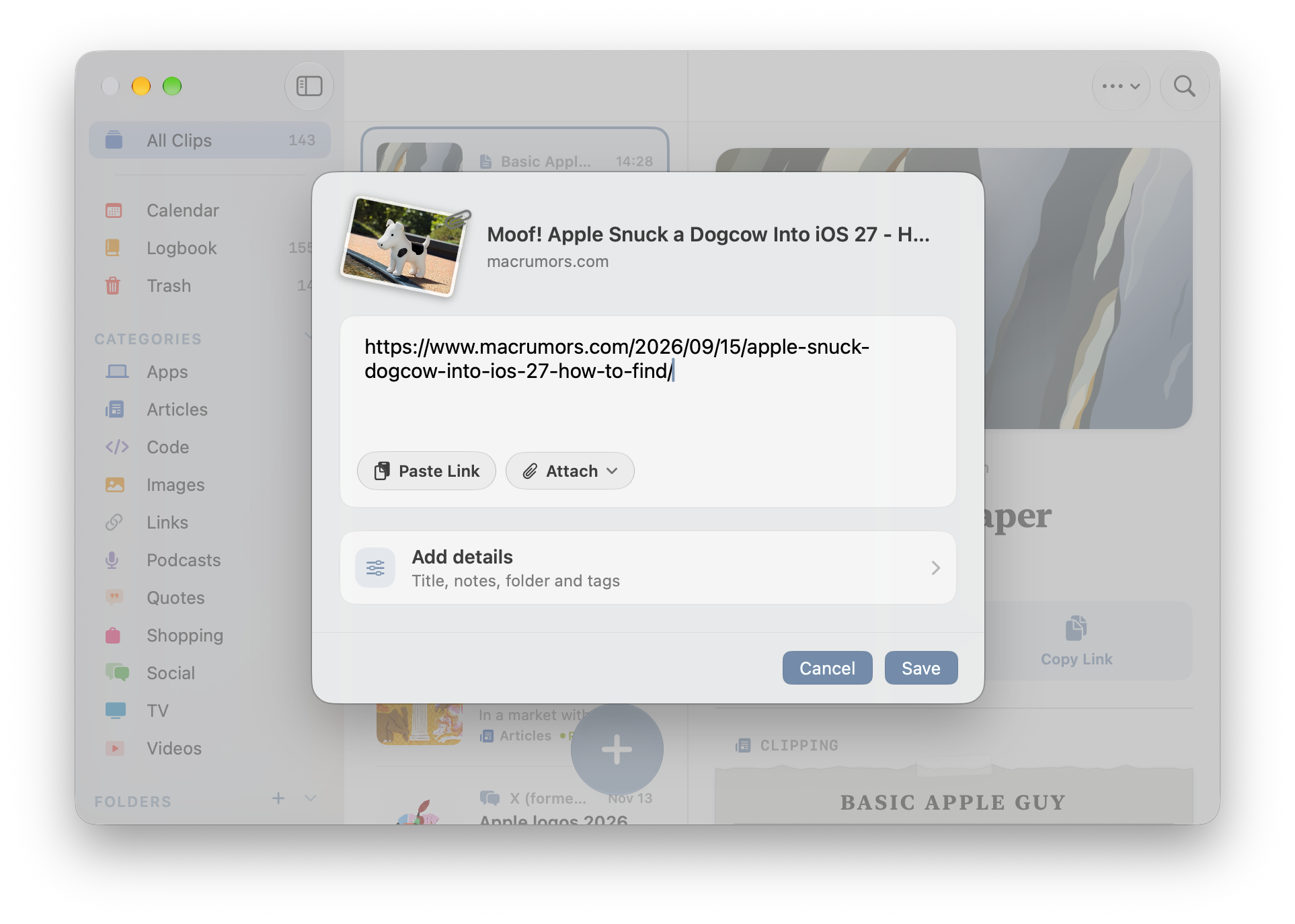
Press the giant plus button (you can’t miss it), your copied link automatically fills in, hit Save, and carry on with your day.
Inside the app, there's an obnoxiously large plus button that's pretty hard to miss. Clicking it lets you write a note or paste a link (which should automatically fill in if you've already copied one to your clipboard). From there, you can add a note, change the title, add tags, or organize the clip into a folder. Or you can simply hit Save and be done with it. Two clicks and you're done!
But I also wanted to make saving things even easier, without necessarily having to open BasicClips in the first place.
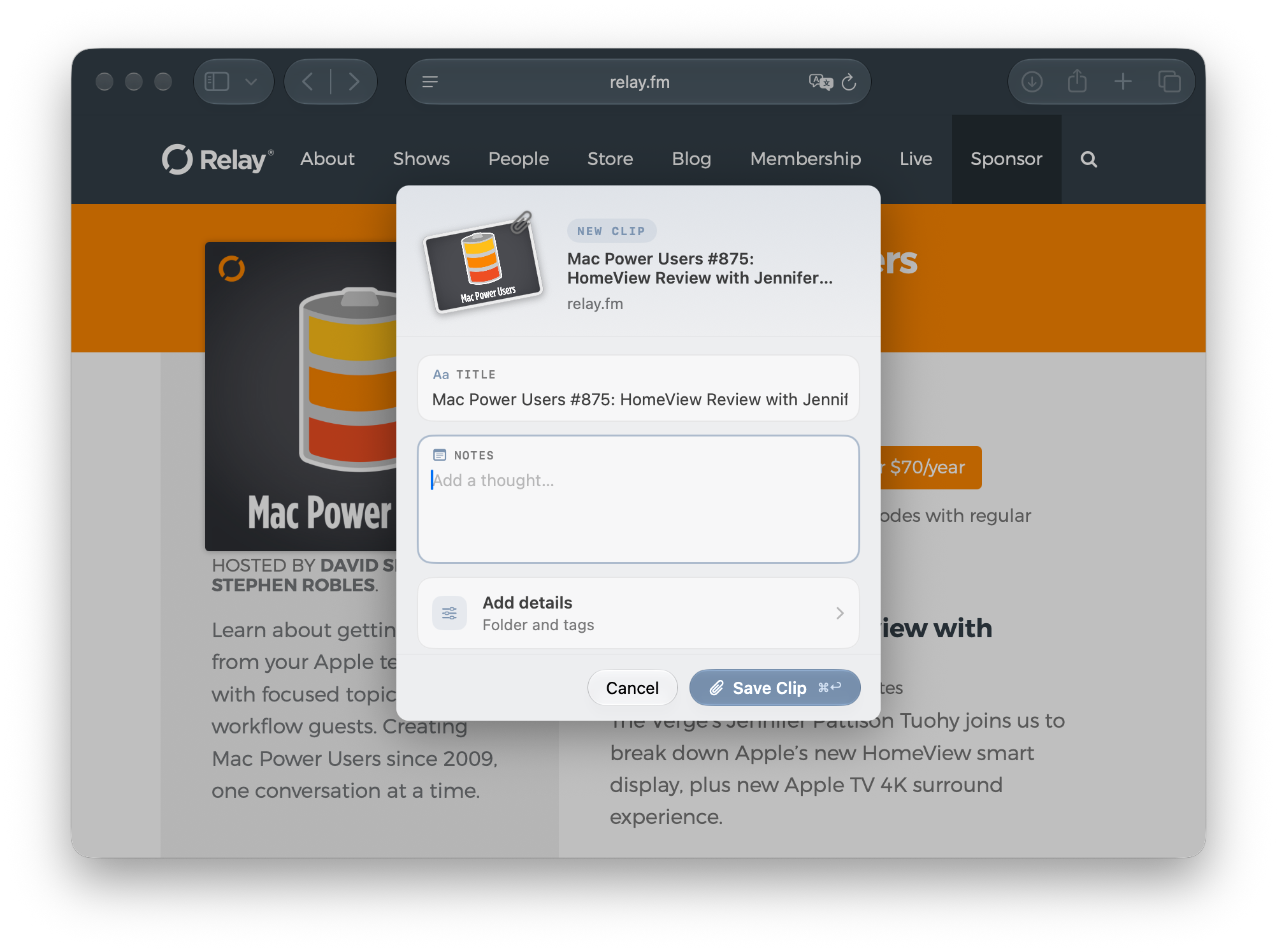
Screenshot of the Share Sheet (macOS)
So, I added a Menu Bar app for the Mac, along with a Share Sheet extension for Mac, iPad, and iPhone. This lets you quickly save clips into BasicClips from whatever app you're using, with everything syncing across your devices. Find something you like, save it, and move on.
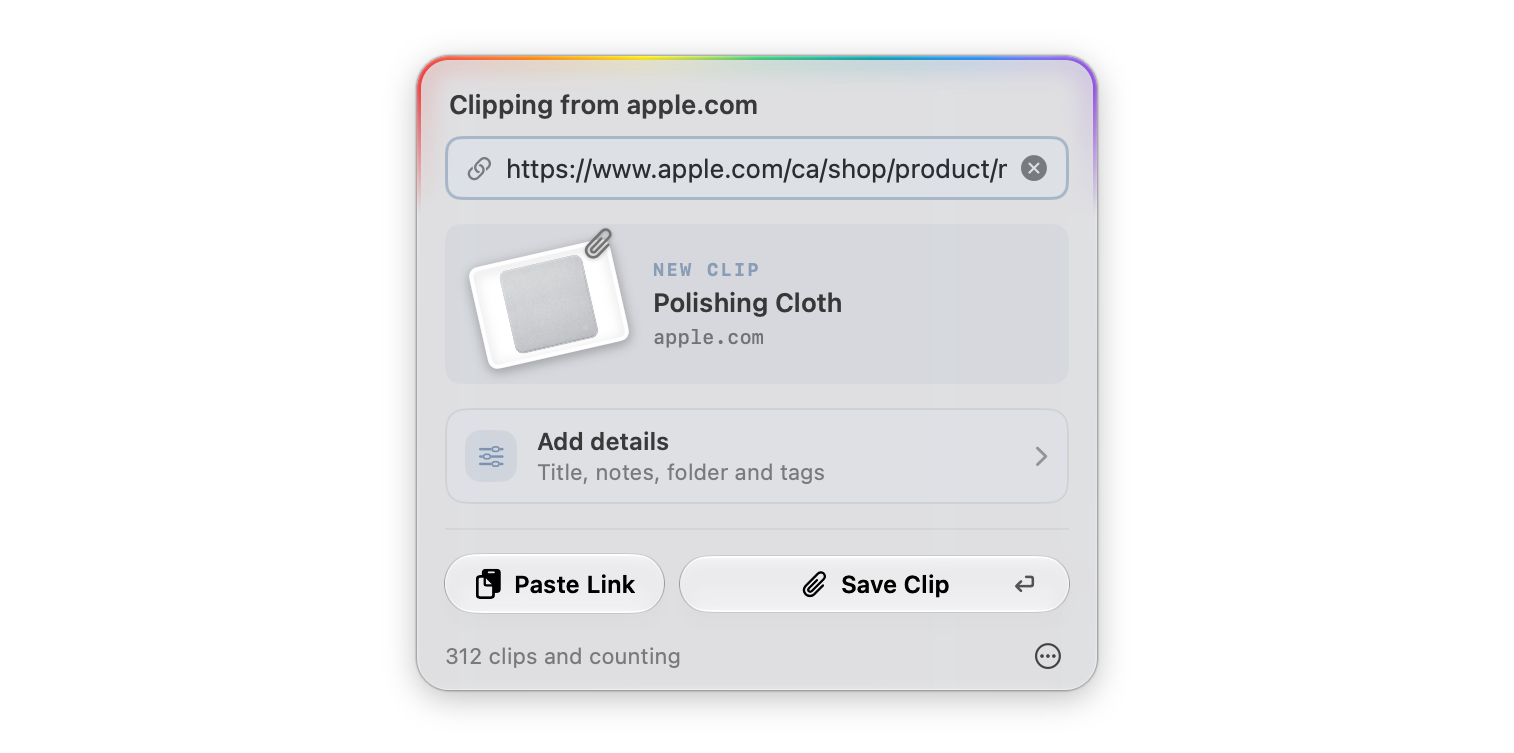
BasicClips Menu Bar (macOS)
Intelligence
But saving a link is only part of the experience. Another thing I really wanted BasicClips to do was intelligently understand the links you're saving. Using Apple's LinkPresentation framework, BasicClips tries to figure out what you're saving and fetch relevant information about it.
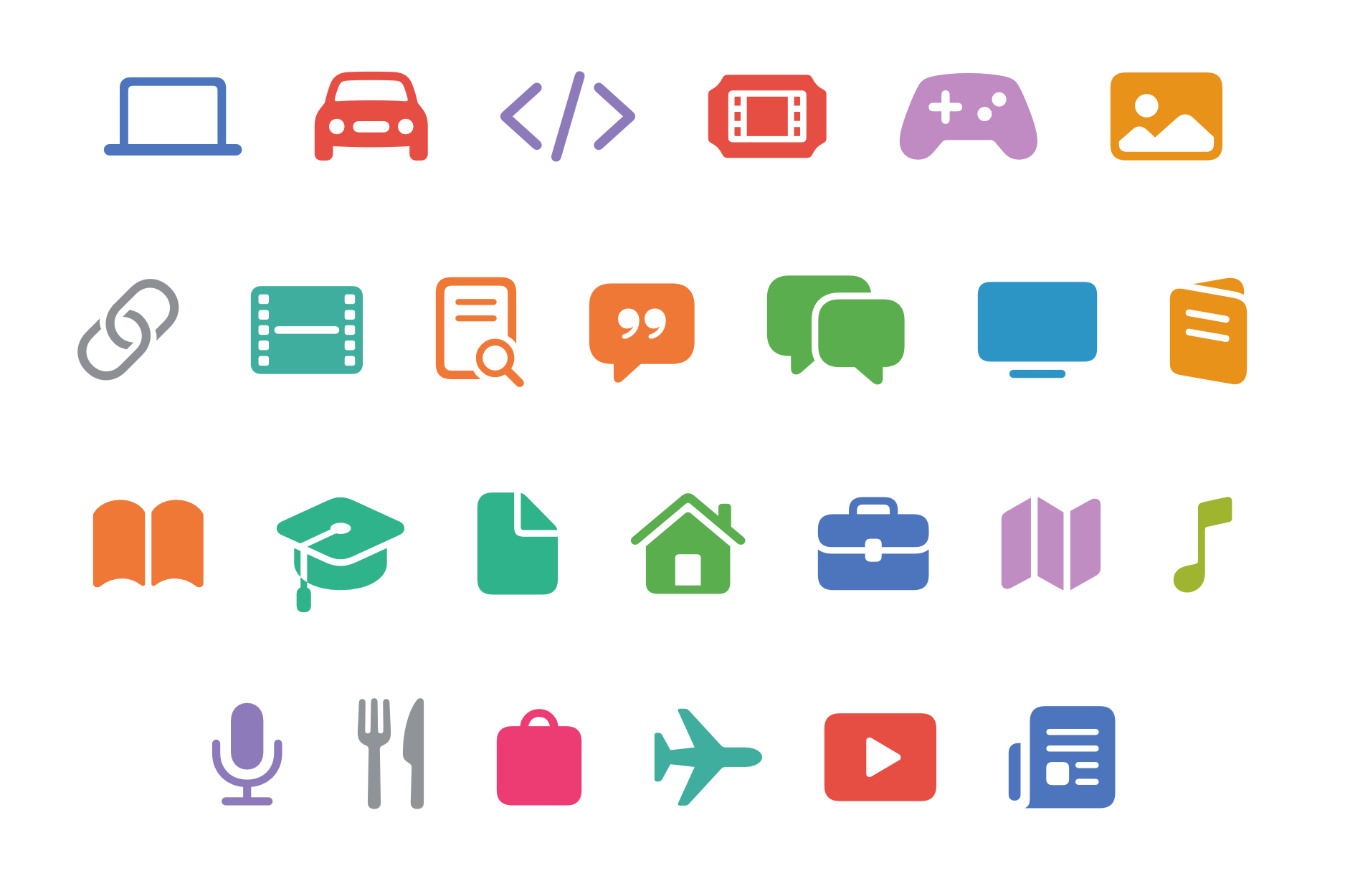
Categories in BasicClips
For example, saving a song from Apple Music can pull in the artwork, artist, album, genre, and song duration. Save a social media post, and BasicClips can fetch details like the author, number of likes and replies, and when the post was originally published. And for news articles, BasicClips tries to identify the source, author, and a description of what the article is about.
In some cases, you can even use Apple Intelligence to generate a summary of an article directly inside the Clip Viewer.
At launch, BasicClips supports 31 different content types, including articles, recipes, movies, books, PDFs, documents, travel, games, apps, and plenty more. And if BasicClips gets it wrong, you can always switch it to the correct content type with a single click.
Organization
Of course, saving all these different things is only useful if you can actually find them again, which brings me to another big focus of BasicClips: organization.
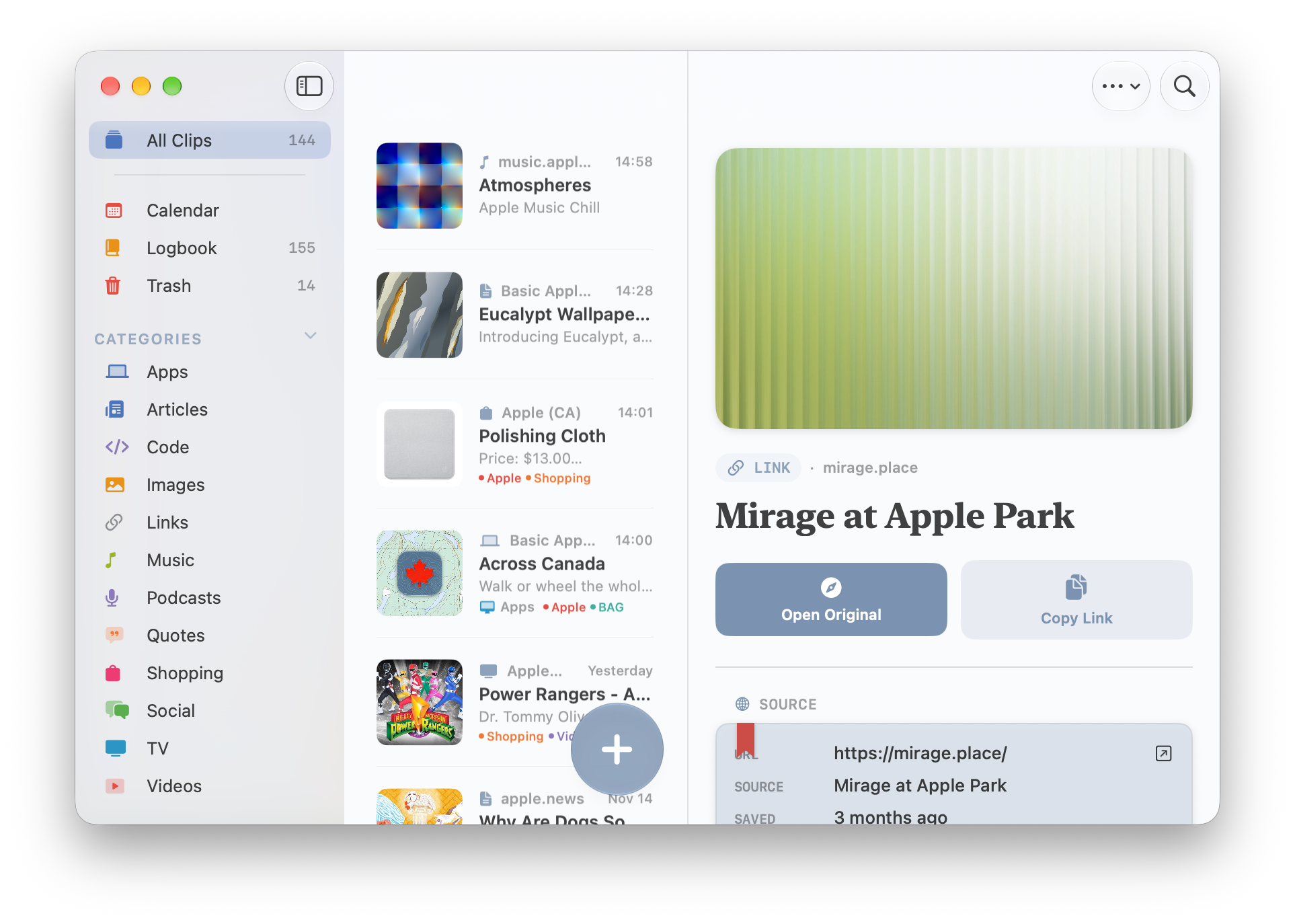
A highly customizable sidebar allows you to show categories, folders, tags, and more (macOS)
In the sidebar, everything you save goes into All Clips, where you can browse and manage everything you've collected. And when you're done with a clip, you have two options. You can delete it entirely, or you can log it, which moves it into the Logbook, removes it from All Clips, and adds a date stamp recording when you logged it. Think of it as a place for the things you might want to come back to later but aren't quite ready to delete.
Additionally, you can create folders, each with its own colour and icon, allowing you to group together collections of clips however you'd like.
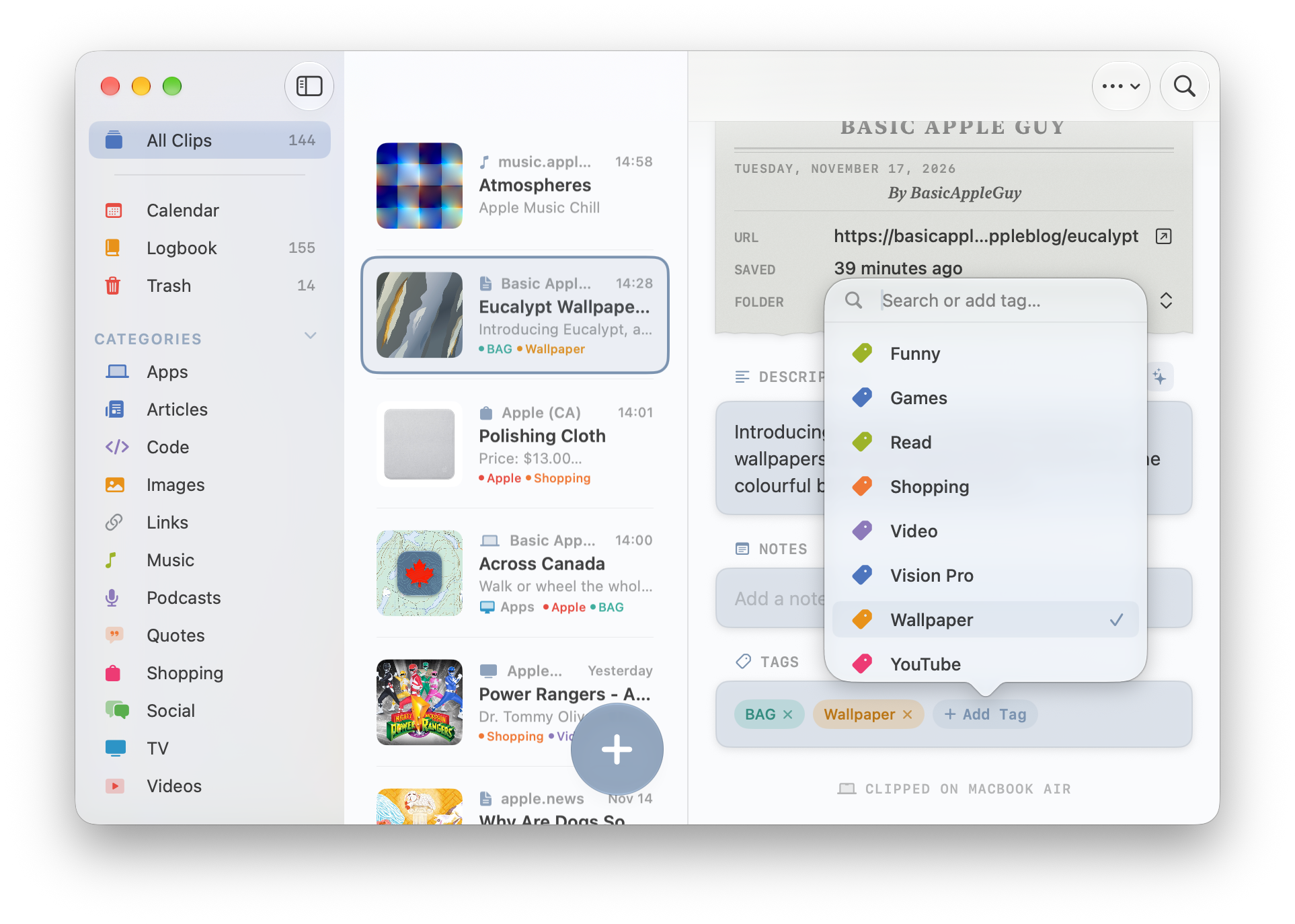
Add Tags to your heart’s content (macOS)
And then there's tagging. You can add as many tags as you'd like to a clip, giving you another way to organize and categorize everything you've saved, while also making it easier to search for and find things again later.
There's also a calendar view, which lets you browse through your clips on a day-by-day basis, making it easy to see what you saved and when.
Or you could choose not to organize things at all. That's fine too! You can leave everything in All Clips and, if you want some way to keep things from piling up, you can even set clips to automatically delete after 30, 60, or 90 days.
Customization
Beyond how BasicClips works, I also wanted the app to look beautiful and give users plenty of ways to customize it.
I've always loved themes in apps. They're a fun way to make an app feel a little more personal, and sometimes just changing the theme is enough to make an app feel fresh again. But I've also noticed that many apps either offer a fairly limited selection of themes or lock them behind paywalls and subscriptions. Not BasicClips.
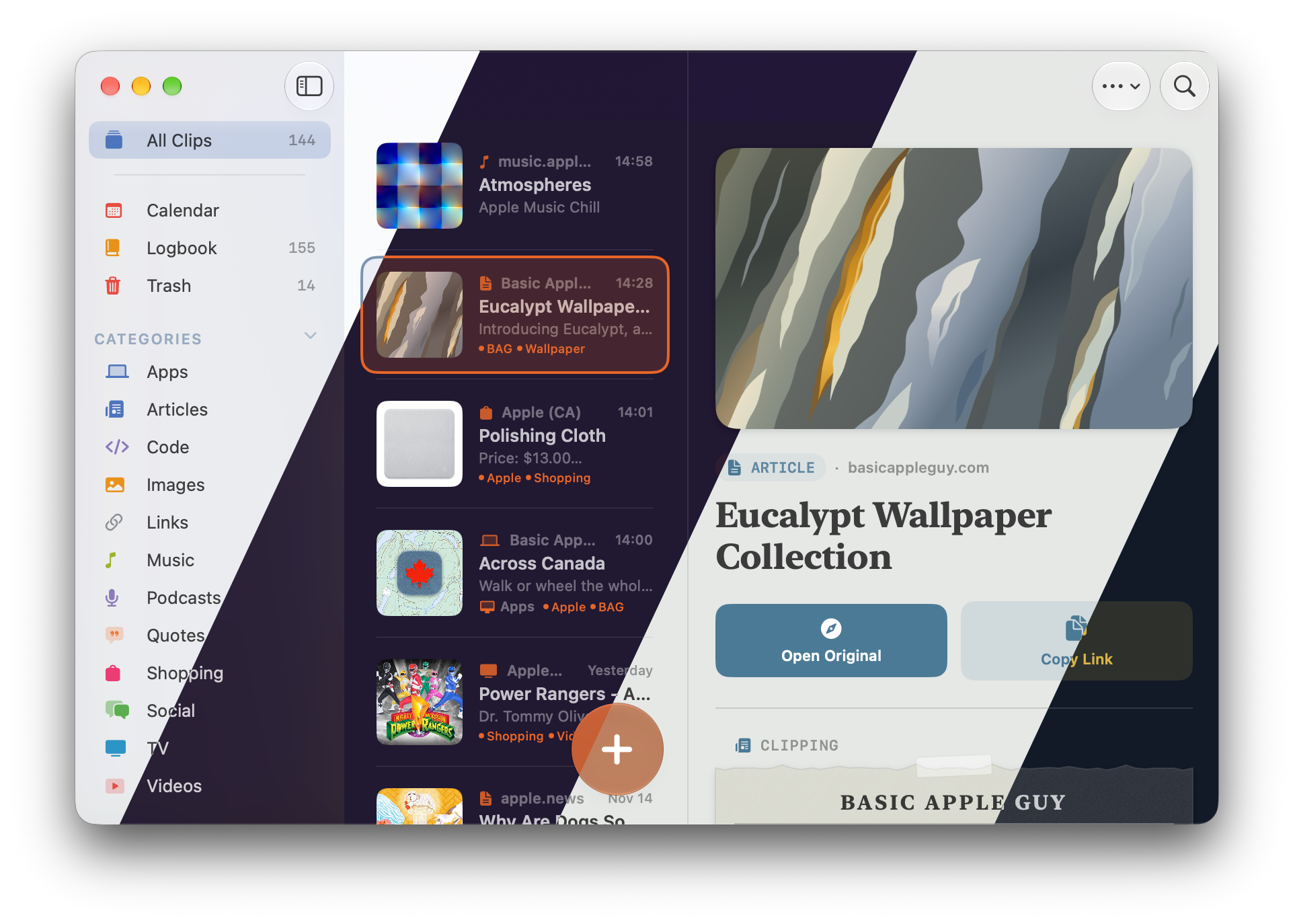
25 themes at launch with more to come… (macOS)
At launch, BasicClips ships with 25 different themes, all available for free. But wait, there's more!
In addition to the themes, I also spent some time thinking about how the sidebar could look. For select themes, I've added four different colour palettes for folders and tags, giving people even more ways to customize the look and feel of the app.
And with plans to release new collections of themes seasonally, I'm hoping BasicClips offers a level of customization that goes a little beyond what you'd typically expect from a bookmarking app.
Whimsy
And now for one of my favourite parts of BasicClips: the whimsy. I've spent months adding all sorts of little touches throughout the app to make it feel a little more polished, playful, and fun to use.
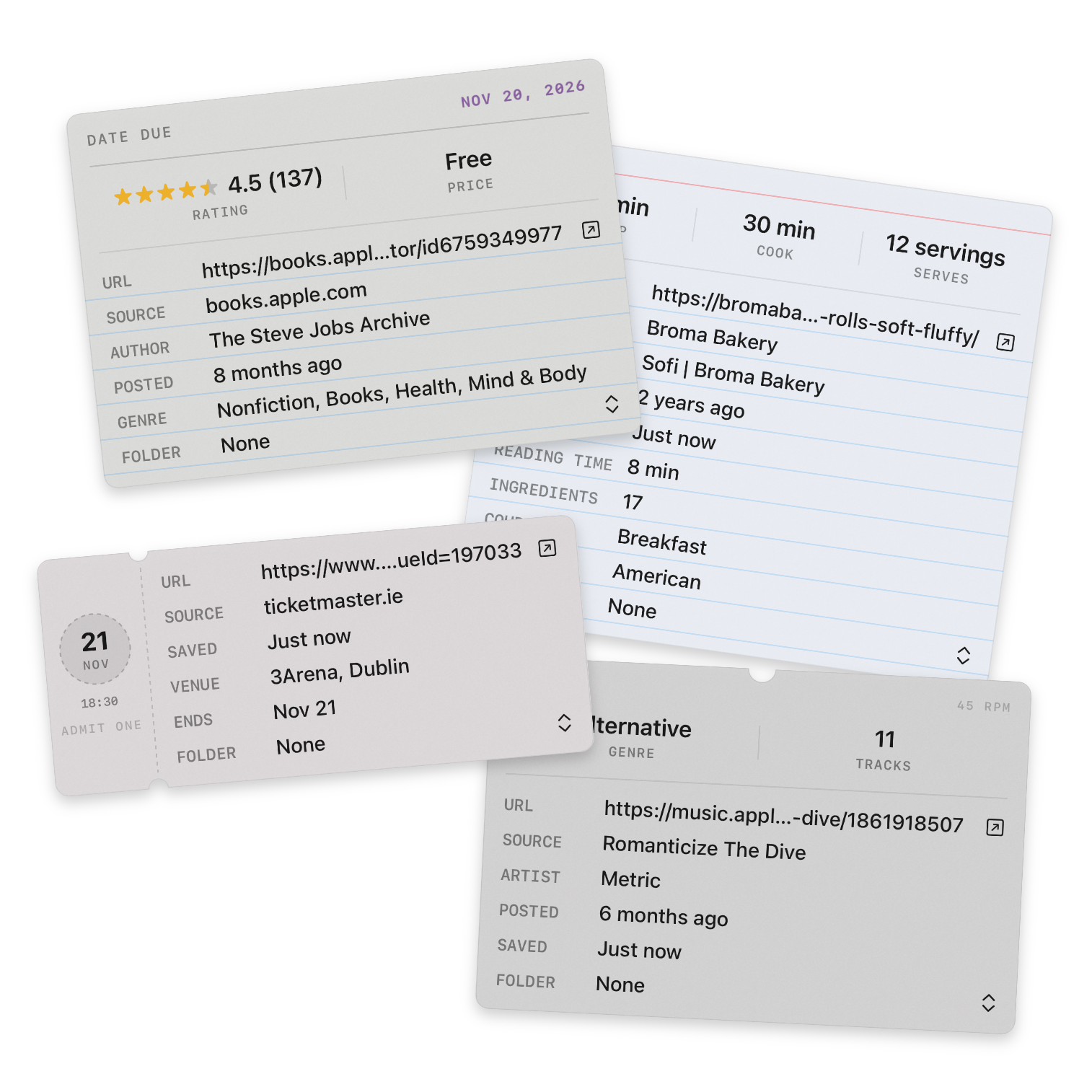
Events are tickets, books are Library Checkout cards, and recipes appear on index cards.
First, there are the themed detail panels. Many of the content categories display their information as physical objects inside the Clip Viewer. Articles appear as newspaper clippings, recipes as index cards, travel as boarding passes, books as library checkout cards, and so on. It's a small detail, but one of my favourite parts of the app.
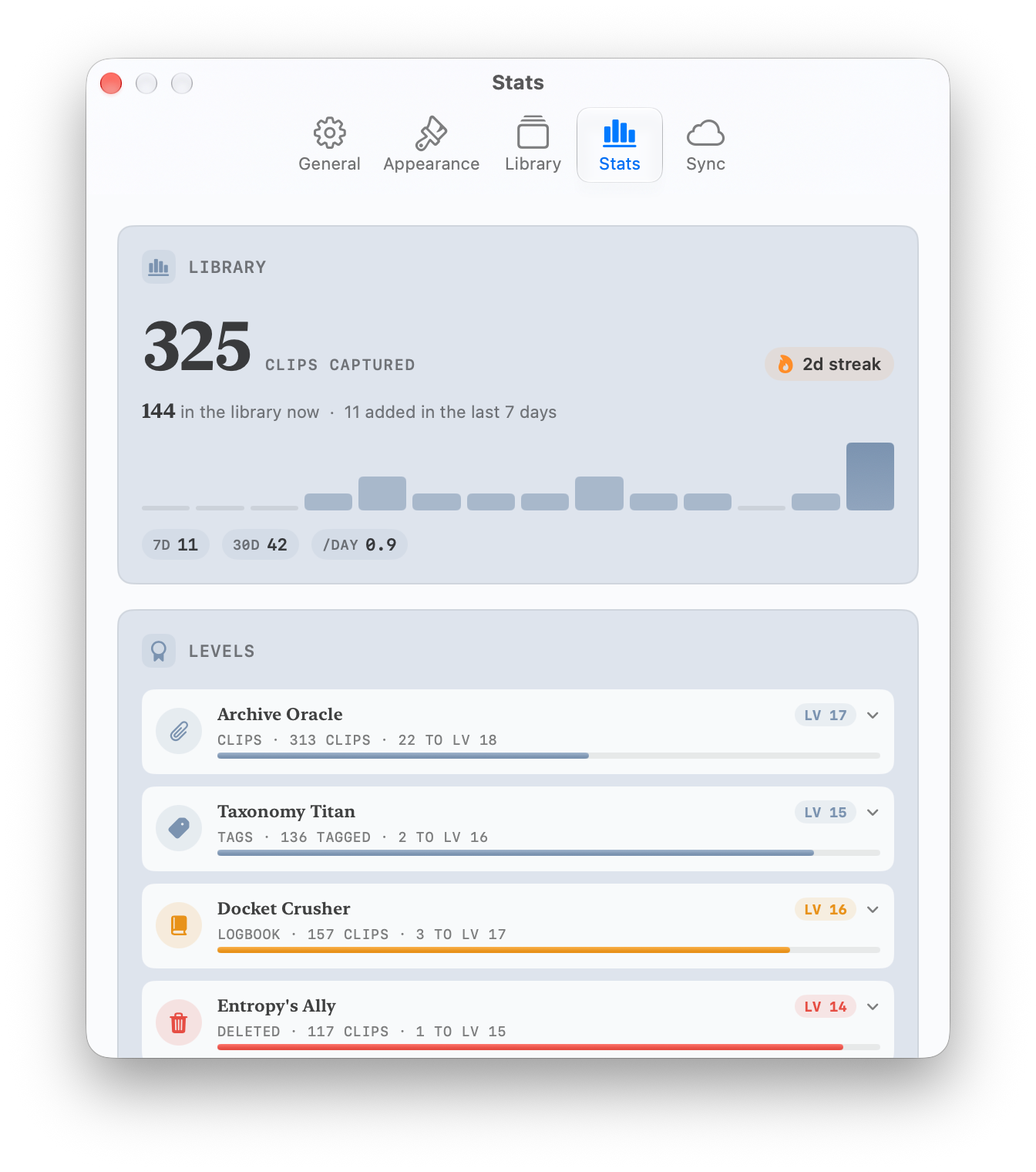
BasicClips might be the first app to gamify bookmarking
Second, BasicClips might just be the first bookmarking app with levels. Inside Settings, there's a Stats page that tracks not only how many clips you've saved, but also your level in each category, how many clips you've logged, and even which devices you've used to save them.
You'll start as a humble "Paper Cut" after saving your first clip and can work your way all the way, after thousands of clips, to "Omniscience”.
I won't give everything away here, but I hope people enjoy discovering all the little bits of whimsy I've sprinkled throughout BasicClips. And of course, if you're someone who absolutely hates whimsy, you can turn it all off with a single toggle in Settings.
How I've Been Using BasicClips

BasicClips has been my hub for all my saves for the past six months.
I've been using BasicClips for about six months now, and I wanted to share a little bit about how I've been using it throughout the day.
First, nearly everything I come across that I want to return to later goes into BasicClips. I might be browsing News+ and come across an article I want to read, so I'll save it. If someone mentions an app I want to check out, I'll add it to BasicClips through the Share Sheet. And if I come across something on social media that provides a little inspiration, I'll save that too.
BasicClips has also become a place where I collect a lot of my design ideas, colour palettes, interesting websites, and even social media posts I want to remember for later. And if I want, I have the ability to go back to the app and add a description or note that helps me remember why I saved something and what I want to do with it later.
Then, every day or so, I'll open BasicClips and go through everything I've saved, which typically works out to about 20–30 things a week. I'll spend a little time organizing clips into folders, deleting things I no longer need, or logging the things I've already dealt with but want to keep a record of.
I've also found myself using BasicClips for quick notes. Sometimes I'll have a random thought, something I want to look up, or an idea I don't want to forget. I'll open the menu bar app, type out a quick note, hit Save, and carry on with my day.
Now, I realize I made the app, and I very much built it around how I use my own devices, but BasicClips has genuinely become one of my most-used apps. Things have felt so busy and chaotic lately that having one place to collect all the little things I come across but don't necessarily have time to deal with right away has been invaluable. I can save something in a few seconds, forget about it for the moment, and come back to it when I actually have the time to give it some attention.
Which, really, was the whole reason I wanted to build BasicClips in the first place.
BasicClips is Vibe-Coded
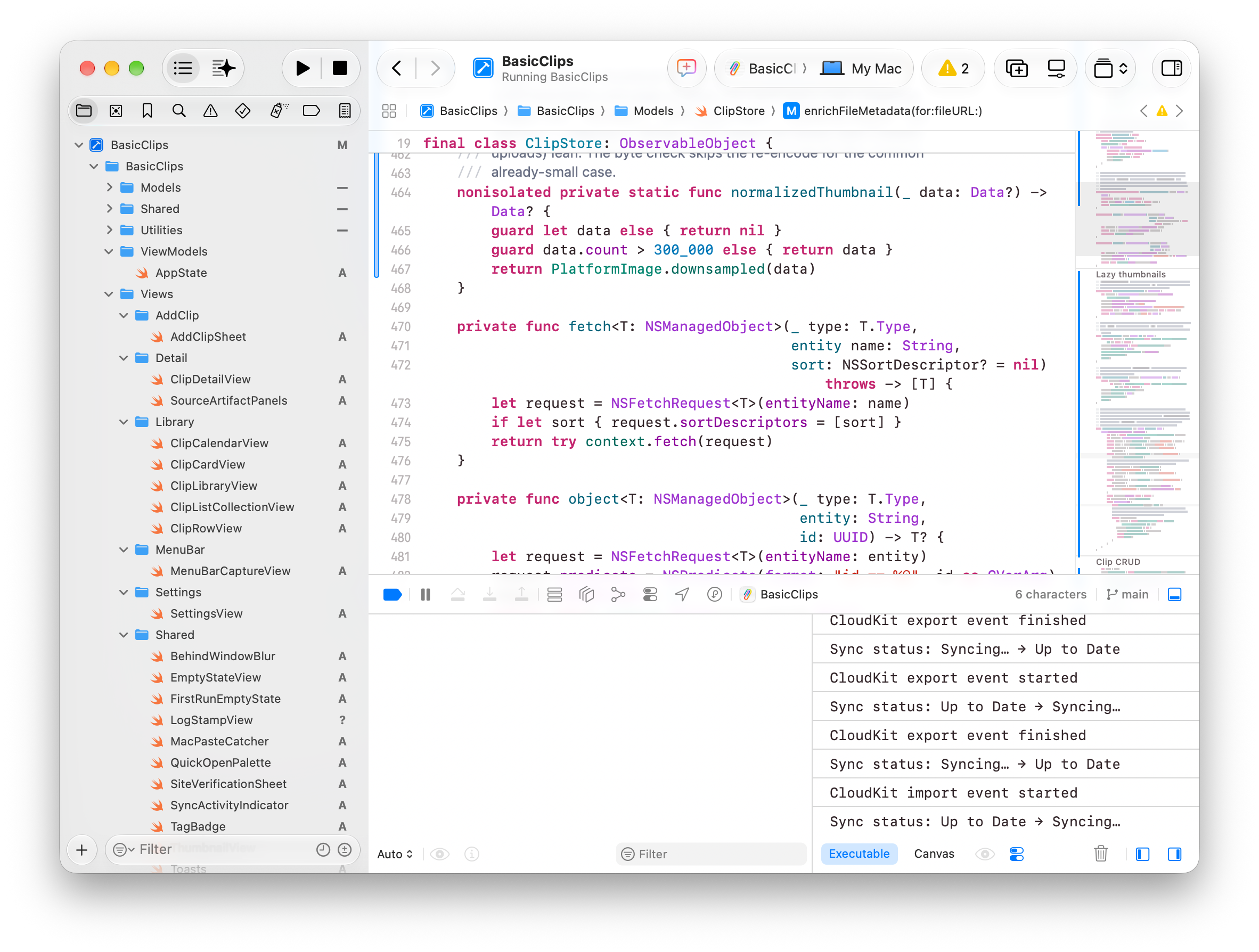
I want to be fully transparent about that, and if you're someone who has strong feelings against using vibe-coded apps, I completely understand and respect that. There are plenty of other bookmarking and save-it-later apps out there made by developers, and I encourage you to check out and support them.
BasicClips started as a bespoke solution to how I use my own devices. Over the course of hundreds of hours of working on it, tweaking things, adding features, and refining the experience, it eventually became something I felt was worth sharing with others.
I hope that if you decide to give it a try, you'll see that despite the vibe-coding of it all, how much love and care went into making it. I've spent countless hours obsessing over little details, refining how things look and function, adding features, and adjusting things down to the pixel. I know that doesn't change how the app was made, but I hope the care that went into it comes through when you use it.
BasicClips is Free
BasicClips is completely free. There are no subscriptions, no features locked behind in-app purchases, and no limits on how many clips you can save before you have to pay up. Every feature, every theme, and every little bit of whimsy is available to everyone.
That said, I'm certainly not opposed to donations from people who want to support the app!
If you do decide to leave a tip, that support goes towards the time I spend working on BasicClips, fixing bugs, adding new features, adding more themes, and generally keeping the app updated, feeling fresh, and improving over time.
Thanks for your support.
Download BasicClips
BasicClips is available today on Mac, iPad, iPhone. Over the past couple weeks, I've also spent time working on getting it fine-tuned for the displays of the iPhone Duo, and I think it's a pretty special product on that device, too. And for the five of you out there, there's also a version for the Vision Pro that's in the works and will be out soon. Enjoy!

Entry and screenshots are based on BasicClips 1.0.2 as of November 17, 2026.
Full Feature List (V. 1.0.2)
Capturing
Save links, notes, quotes, code snippets, images and files into one library on iPhone, iPad and Mac.
New Clip sheet detects a URL as you type, infers the content type and shows a live thumbnail preview before you save.
Duplicate detection warns if a link is already in your library and offers to jump to it.
Share Sheet extension on iOS and macOS, with title, note, folder and tag fields right in the sheet.
Menu bar icon on Mac with a one-click capture popover that spots a URL already on your clipboard.
Drag and drop a link, image or file anywhere on the window to capture it instantly.
⌘V with an image or file on the clipboard attaches it as content instead of pasting text.
iOS Home Screen quick actions for New Clip, Save from Clipboard and Search.
Every clip records which device it was captured on.
Smart Metadata
Automatically fetches title, thumbnail, description, author and publish date for any link, with a web snapshot fallback when a page has no image.
Over 30 content types recognized from the URL, including articles, recipes, shopping, podcasts, music, movies, books, apps, papers, jobs, homes, cars, restaurants, travel, games and courses.
Dedicated fetchers for Twitter/X, Bluesky, Mastodon, Threads, Instagram, TikTok, Pinterest, Reddit and Hacker News pull real post text, media and engagement counts.
Apple Music, Podcasts, TV, Books and App Store links get high-res artwork and rich details like duration, episode, genre and ratings.
Movies and TV from IMDb, Letterboxd, Rotten Tomatoes and major streaming services include director, runtime, cast and ratings.
Shopping pages extract price, brand and availability. Recipes extract yield, prep and cook times, calories and ingredient count.
Job listings, home listings, vehicle listings, events, restaurants, hotels, flights and courses each get their own structured fields.
Maps links resolve to a place name, address and coordinates.
Files attached to clips get size, page count, dimensions, EXIF and media duration extracted.
Summarize an article's description on-device with Apple Intelligence (where available)
Verify Site Access opens an in-app browser to pass a bot check, then refetches the preview.
Refresh Preview re-fetches everything while keeping your own title, notes and tags.
Browsing and organising
Three-column layout with sidebar, library and detail pane. Grid, list and compact view styles.
Built-in sections: All Clips, Calendar, Unsorted, Notepad, Pinned, Favorites, Recents, Logbook and Trash. Choose which appear in the sidebar.
Category smart lists for each content type, pinnable so they show even when empty.
Folders with custom colours and a choice of about 230 SF Symbol icons, reorderable by drag.
Tags with colours. Unpinned tags disappear automatically once nothing uses them.
Drag clips onto a folder, tag, Logbook or Trash in the sidebar to file them.
Pin clips to the top and mark favorites.
Logbook is the archive: logged clips get a circular stamp and stay searchable but out of the way.
Trash with restore, Delete Forever, Empty Trash and optional auto-empty after 30 days.
Auto-clean can delete unsorted clips after 30, 60 or 90 days.
Calendar view shows a month grid with a mini photo print of each day's latest clip and a count badge.
Swipe actions for Pin, Favorite, Log and Trash, with a configurable full-swipe action.
Context menus for Open, Copy Link, Pin, Favorite, Tag, Move to Folder, Log and Trash, including bulk actions on multi-selection.
Drag clips out of the app as real URLs, files or text.
Search and navigation
Full-text search across title, description, notes, author, URL, tags and extracted metadata like price or EXIF.
Search tokens such as type:, tag:, domain: and in: to narrow results.
Clips are indexed in Spotlight, and tapping a result opens the clip.
Deep links to a clip, a calendar day, the New Clip sheet or a search.
Detail pane
Large hero preview with Quick Look, and the ability to add, replace or remove an image or attachment.
Inline editable title, description and notes. Change the content type from a popover.
Metadata panel with stat tiles, star ratings, price level and other glyphs.
Themed artifact panels per content type: ticket stubs for events, boarding passes for flights, receipts for shopping, index cards for recipes, newspaper clippings, record sleeves, filmstrips, library checkout cards and more.
Attachment panel with size, a sync-size warning, Open, Export and Reveal in Finder.
Share from the detail view, and tell Apple Intelligence which clip is on screen.
Siri, Shortcuts and App Intents
Save Clip from Siri or Shortcuts, falling back to the front Safari tab or clipboard on Mac.
Actions to favorite, log, tag, move, trash and open clips, with undo support for trash.
Query intents like Find Clips, On This Day, Recent, Random, Catch Up, by Tag, by Folder, by Type and by Source, each returning interactive snippet cards.
Sync
iCloud sync via CloudKit across Mac, iPhone and iPad, including notes, favorites, pins, Logbook, Trash and artwork.
Shared App Group store so Share Extension captures appear immediately and upload in the background on iOS.
Sync status card with Force Sync, last pushed and received times, and storage footprint.
Validate Links checks every saved URL and flags broken ones in the list. Re-upload Library resends everything to iCloud.
Subtle sync spinner next to All Clips while CloudKit is working. Pull to refresh on iOS.
Appearance and personalisation
Light, Dark or System mode.
25 themes across four collections.
Folder and tag colour packs: Hello, Retro, Zen Saturated and Calm.
Optional colourful library icons and a Whimsy toggle for the artifact panels.
Classic and Retro app icons on both iOS and Mac.
Adjustable sidebar row, icon and text sizes, plus item counts per group.
Position and colour of the floating New Clip button.
Haptic feedback on iPhone and iPad. Open at Login on Mac.
Stats and levels.
Current and longest capture streaks, first and last clip dates.
Breakdowns by content type, top sources, tags and folders.
Level tracks with named levels for your overall library, tags, each category, Logbook, deletions and each device you clip from.
Reset statistics to start from today, with Restore All-Time to undo.
VoiceOver
Over 60 accessibility labels for buttons, controls, and actions throughout the app.
Clips are read as a single element, making navigation easier.
Calendar dates announce how many clips were saved, with labelled swipe actions.
Sidebar folders announce clip counts and expanded or collapsed states.
Selected themes, colours, icons, and settings are identified.
Decorative elements are hidden from VoiceOver, while visual indicators have spoken descriptions.
Dynamic Type
Text scales with the system's Dynamic Type settings on iPhone and iPad.
Text sizes update automatically when accessibility settings change.
Smaller interface elements adjust to accommodate larger text.
Colour and Contrast
Folder and tag colours automatically adjust for improved contrast in light and dark modes.
Themes support macOS High Contrast settings.
Additional contrast adjustments for lighter accent colours.
Light, Dark, and System appearance options.
Motion and Feedback
Animations respect the Reduce Motion accessibility setting.
Haptics can be disabled on iPhone and iPad, including in the Share Extension.
Keyboard and Pointer
Extensive Mac keyboard shortcuts for navigation, searching, saving, organizing, and managing clips.
Hardware keyboard shortcuts on iPad.
Keyboard navigation for renaming, Quick Open, and tag selection.
Tooltips on approximately 20 Mac controls, including keyboard shortcuts.
Low Vision and Layout
Adjustable sidebar row height, icon size, and text size (S–XL).
Optional clip counts and colourful icons for easier navigation.
Logged clips use both dimming and date stamps to distinguish their status.
Privacy
No tracking and no data collection declared in the privacy manifest. Everything lives in your own iCloud account.